Once your eSIM has been activated in the Goodtel portal, you'll receive an email with a QR code that's unique to your mobile number. Follow the steps below for your phone type to finish setting up your eSIM.
Before you start
- Open the QR code email on a different device, such as a laptop or computer.
- Don't open the email on the phone you're setting the eSIM up on – you'll need that phone's camera to scan the QR code.
iPhone (iOS)
Step 1: Scan the QR code
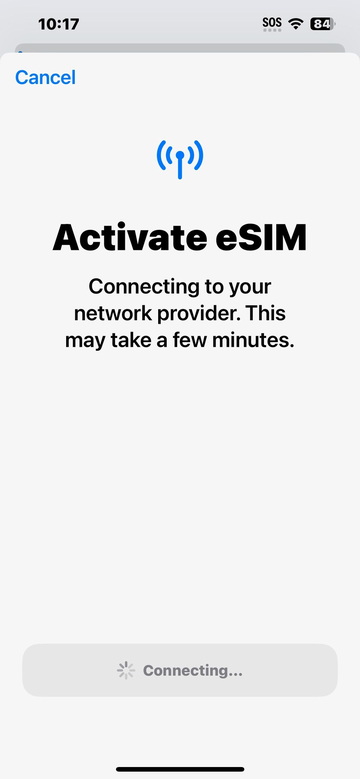
Using your iPhone's camera, scan the QR code in your email. Your iPhone will show Activate eSIM while it connects to the network. This may take a few minutes.
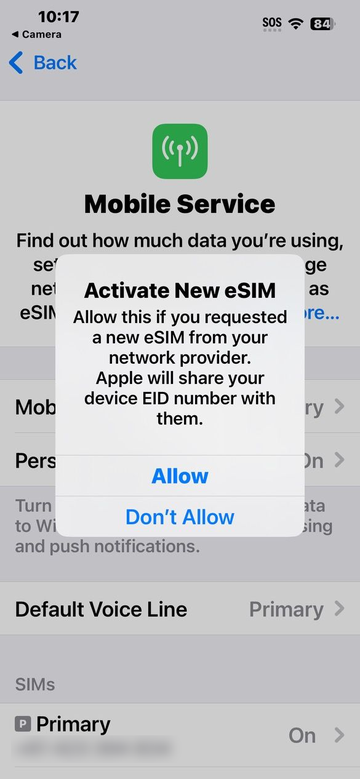
Step 2: Tap Allow
When the Activate New eSIM message appears, tap Allow.
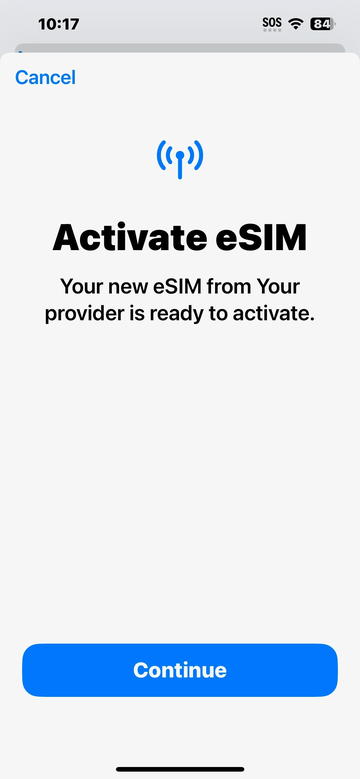
Step 3: Tap Continue
Your new eSIM is ready to activate. Tap Continue.
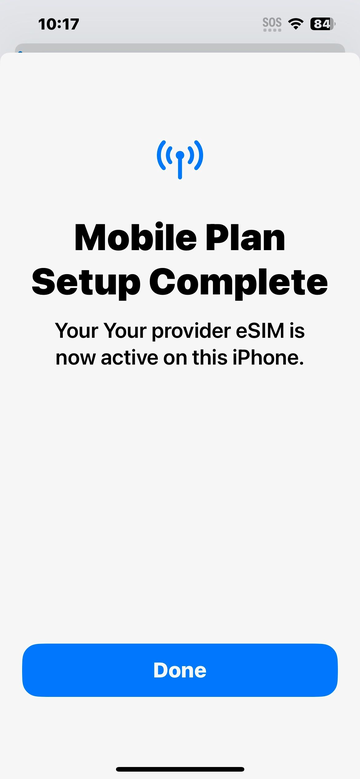
Step 4: Tap Done
You'll see Mobile Plan Setup Complete. Tap Done.
Android
Step 1: Scan the QR code
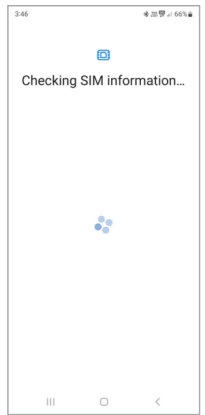
Using your Android phone's camera, scan the QR code in your email. Your phone will show Checking SIM information…
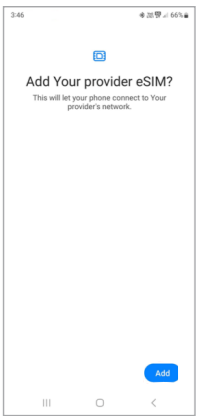
Step 2: Tap Add
When asked to add your provider eSIM, tap Add.
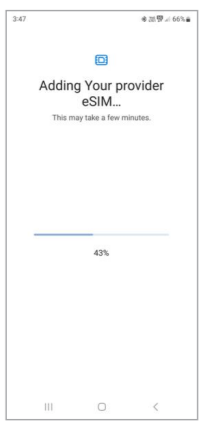
Step 3: Wait for the download
Your eSIM will start downloading. This may take a few minutes – keep your phone on this screen until it's finished.
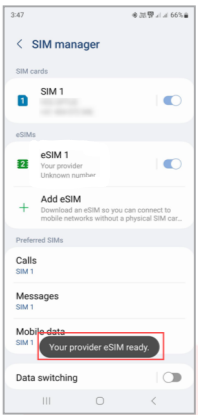
Step 4: Download complete
Once the download is complete, you'll see a message that your eSIM is ready.
Test your service
Your eSIM is now active. Make a phone call to check your service is working as expected.
Need a hand? Contact our support team and we'll be happy to help.
Was this article helpful?
That’s Great!
Thank you for your feedback
Sorry! We couldn't be helpful
Thank you for your feedback
Feedback sent
We appreciate your effort and will try to fix the article