Your Goodtel phone line is moving to a new network before 30 November 2026. After the move, your modem needs your new phone line details (a username, a password and a server address, which Goodtel will give you) before your phone will work again. This guide shows you how to enter them.
Prefer not to do this yourself? No problem. Call us on 1800 11 GOOD (4663) and we will step you through it.
Which modems can carry your phone line?
Your phone line plugs into a phone socket on your modem. You can find your modem's model name on the sticker on the back or bottom of the unit. Menu names can vary slightly between modems, so use what you see on your screen.
Your modem | Where to find the phone settings | Good to know |
NetComm NF18ACV | Phone (left menu), or Voice > SIP Basic Setting | Your first line uses phone port 1 |
NetComm NF18MESH | Phone, or Voice > SIP Basic Setting | Works with the NS-01 Wi-Fi satellite |
NetComm NF20MESH | Voice > SIP Basic Setting | Once saved, check that VOIP Status shows Up |
NetComm NL19MESH | Voice > SIP Basic Setting | |
NetComm NL1901ACV | Phone (left menu), or Voice > SIP Basic Setting | Plug your phone into Telephone 1. We will send you specific steps. |
TP-Link Archer VX230v | Telephony > Telephone Numbers > Add | Can hold several phone lines |
TP-Link Archer VX1800v | Telephony > Telephone Numbers > Add | |
TP-Link Omada DR3650v-4G | VoIP > Add | We will send you specific steps |
DrayTek Vigor 2865Vac | VoIP > SIP Accounts | |
DrayTek Vigor 2765Vac | VoIP > SIP Accounts | |
DrayTek Vigor 2767Vax | Configuration / VoIP > SIP Accounts | Newer menu layout (see below) |
Modems that cannot carry a phone line
Some devices have no phone socket, so the phone line details cannot be entered into them:
- Google Nest Wifi: has network sockets only. You will need a small phone adapter, or a modem that has a phone socket.
- TP-Link Archer VR300: has no phone socket, so it is not suited to a phone line. Please contact us.
- NetComm NS-01 and NS-02: these only extend your Wi-Fi. Your phone connects to your main NetComm modem instead.
- DrayTek models without a V in the name: these have no phone socket.
A phone adapter is a small box that plugs into your router with a network cable, with your phone plugged into the box. If you are not sure what suits you, call us and we will advise.
What you need before you start
Goodtel will send you three details for your phone line:
What we send | What it is | What your modem may call it |
Username | The login name for your phone line | Username, Authentication name or Authentication ID |
Password | The password for your phone line | Password |
Server address | The internet address of the phone system | Domain, Server, Proxy, Registrar or Realm |
We may also give you a port number (usually 5060). Leave any setting we have not mentioned as it is.
Tips to avoid typing mistakes
- Copy and paste the details if you can, and make sure no spaces are added at the start or end.
- Passwords are case sensitive, so capital letters matter.
- Type the username exactly as we send it. It is not always your phone number.
Before you start, make sure your internet is working and your phone is plugged into the phone socket on the modem (not the socket for the phone line from the wall).
NetComm modems
NF18ACV, NF18MESH, NF20MESH, NL19MESH and NL1901ACV.
- Connect a computer or phone to your modem by Wi-Fi or cable.
- Open a web browser, type 192.168.20.1 and press Enter.
- Log in as admin. The password is printed on the sticker on the underside of the modem (on the NL1901ACV it is the serial number).
- Click Phone in the left menu. If you do not see Phone, click Voice, then SIP Basic Setting.
- Tick Use SIP Proxy, Use SIP Outbound Proxy and Use SIP Registrar, then type the server address into each of the three boxes. It goes in all three.
- In the row for phone line 1, type your username in Authentication name, and your password in Password. If you see Cid Name and Cid Number boxes, we will tell you what to enter. Leave line 2 unticked if you do not use it.
- Click Apply or Save, then open VOIP Status and check Registration Status says Up.
- Plug your phone into phone port 1.
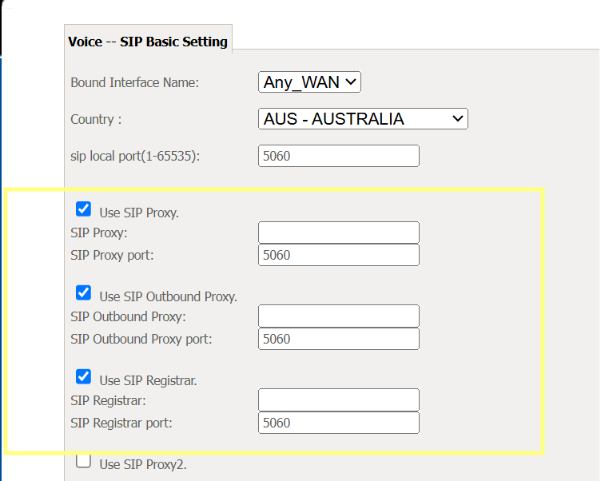
The NetComm phone page. The highlighted boxes are where your server address goes.
If you already have a working phone line from another provider, tell us before you change anything. We will help you set up the new line without disturbing the old one.
TP-Link modems
Archer VX230v and Archer VX1800v. Your modem needs a working internet connection before the phone line can connect.
- Log in to your modem's settings page. The address and password are on the sticker on the modem.
- Click Telephony (under Basic or Advanced, depending on your modem), then Telephone Numbers, then Add.
- For Telephony Provider, choose Other.
- Fill in the boxes as shown below, then enter the port we gave you (usually 5060).
- Leave the Advanced section alone unless we tell you otherwise. If the Bound Interface box is shown, make sure it matches the internet connection you normally use.
- Click Save and check the line shows as registered.
Box on your modem | What to type |
Telephony Provider | Other |
Phone Number | The number or ID we tell you |
Authentication ID | Your username |
Password | Your password |
Registrar Address | Your server address |
Registrar Port | 5060, unless we tell you otherwise |
If your modem sits behind another router, check whether that router has a setting called SIP ALG, as it can stop calls going in or out.
DrayTek modems
Only DrayTek models with a V in the name have phone sockets. The menu layout depends on your modem.
Vigor 2865Vac and 2765Vac
- Log in to your modem's settings page.
- Click VoIP, then General Setting, and turn VoIP on.
- Click SIP Accounts, then click an empty line.
- Enter a name for the line (any label), choose the internet connection to use, and set the port (usually 5060).
- Type your server address in both Domain/Realm and Proxy.
- Type your username in both Account Number/Name and Authentication ID, and your password in Password.
- In Ring Port, choose the phone socket your phone is plugged into, then click OK.
- An R next to the account means your phone line is connected.
Box on your modem | What to type |
Domain/Realm | Your server address |
Proxy | Your server address |
Account Number/Name | Your username |
Authentication ID | Your username |
Password | Your password |
Ring Port | The phone socket your phone is plugged into |
Vigor 2767Vax
- Log in to your modem's settings page and click Configuration, then VoIP.
- In General Setup, turn VoIP on, choose your internet connection, and type your server address once. Then click Apply.
- Open SIP Accounts and click +Add.
- Enter a name for the line (any label), type your username in Account Number and your password in Password, and choose the phone socket your phone is plugged into.
- Click Apply. The status should say Registered.
This layout has no separate registrar, proxy or authentication ID boxes. If your phone line does not connect, call us.
Other modems
If your modem is not listed, or shows different names to those above, please do not guess. Contact us and we will send you the steps for your modem.
Checking it works, and fixing problems
After you save, make two test calls: call your number from a mobile, and call a mobile from your phone. You should hear a dial tone when you pick up. If your phone line does not work, try these in order:
- Phone status: check it says Up or Registered (NetComm: VOIP Status. TP-Link: the telephone number entry).
- Phone socket and light: check the phone light on the modem is on, and your phone is plugged into the socket that matches your line (port 1 for your first line).
- Username: check you used the username we sent you, exactly as written, not your phone number, unless we told you otherwise.
- Typing: check there are no extra spaces and the password's capital letters are right.
- SIP ALG: this is a setting that can interfere with phone calls. On NetComm modems it is under Advanced > SIP Settings and should be off. If your modem sits behind another router, check that router too.
- Proxy boxes: check you only filled in the boxes we asked you to.
- Restart: switch the modem off, wait 30 seconds, switch it on, and give it a few minutes. Check the cables too.
A phone that runs through your modem stops working if the power or the internet goes out. Keep a charged mobile phone nearby, and use it to call 000 in an emergency.
Was this article helpful?
That’s Great!
Thank you for your feedback
Sorry! We couldn't be helpful
Thank you for your feedback
Feedback sent
We appreciate your effort and will try to fix the article